Welcome to Documentation for RLT Sensite - Creative WordPress Block Theme
Hello, you are looking at the documentation for RLT Sensite - Creative WordPress Block Theme. Here you will learn how to set up the theme and customize it to fit your needs. RLT Sensite is a modern Full Site Editing theme with several of useful custom Gutenberg block plugins.
This guide is designed for beginner users, but if you encounter something that's not covered in the documentation or is unclear, please visit the theme support tab on themeforest.net and ask your question.
You can visit the demo site at https://sensite.realthe.me/
Getting Started
After downloading the purchased ZIP archive from ThemeForest.net and unzipping it, you will find the following files:
- rlt-sensite.zip - main theme
- documentation.url - shortcut link to online documentation
- plugins - folder with 5 plugins
- assets - folder containing images and logos related to the theme.
Installation
Steps to install the theme:
- Login on your WordPress Admin Panel.
- Select Appearance > Themes menu item.
- Click Add New Theme button.
- Click the Upload button, then click Choose File.
- In the dialog box that opens, select the previously downloaded rlt-sensite.zip archive and upload it. Once the upload is complete, click the Install Now button to install.
- Now you can activate the theme you just installed by clicking Activate button.
For more info check https://wordpress.org/documentation/article/work-with-themes/
Required Plugins
Plugin Installation Process:
-
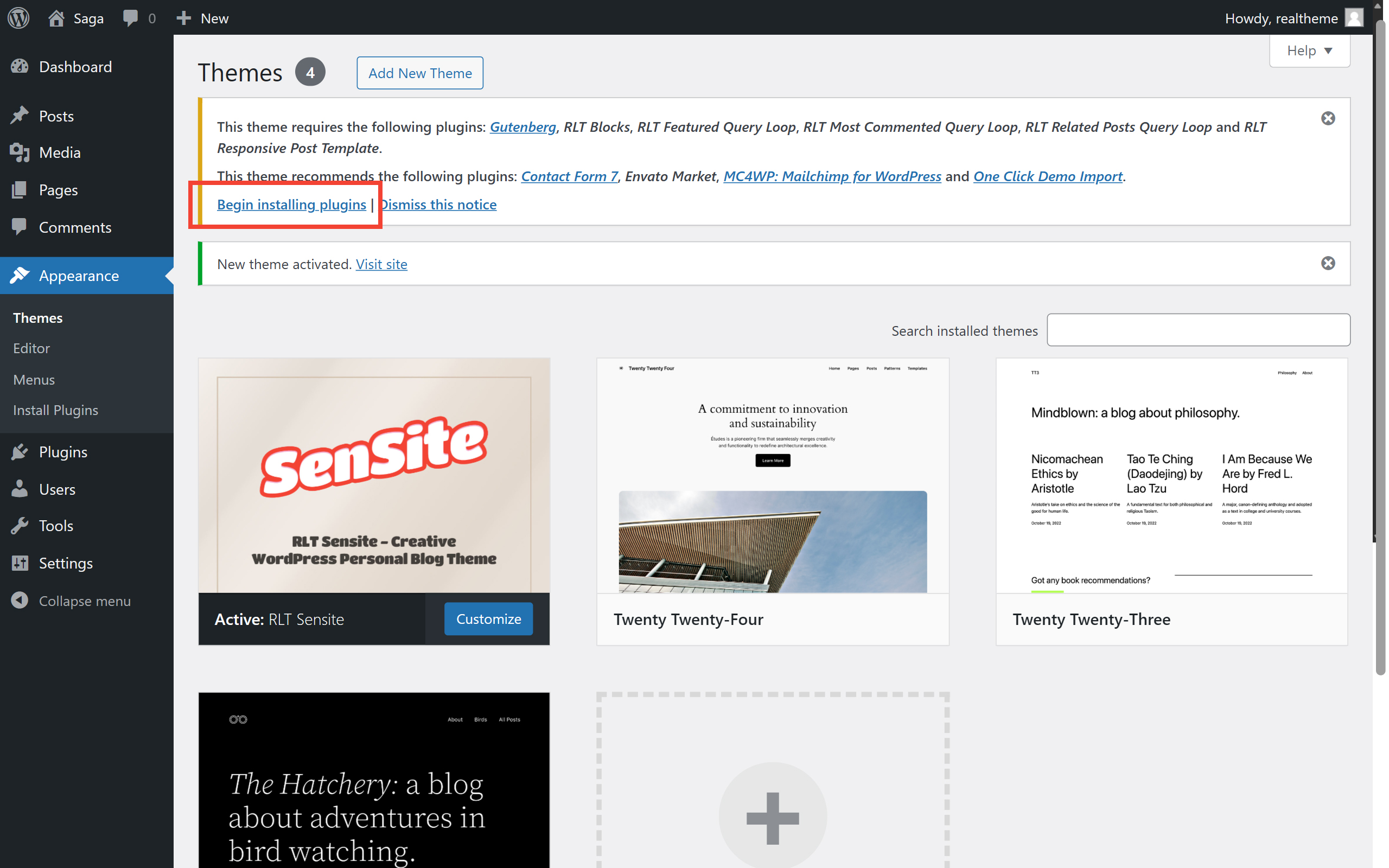
After installing and activating the theme, you will see a notification box prompting you to install the required and recommended plugins. Proceed with the installation of the necessary plugins by clicking the "Begin installing plugins" link (see Pic. 1).
-
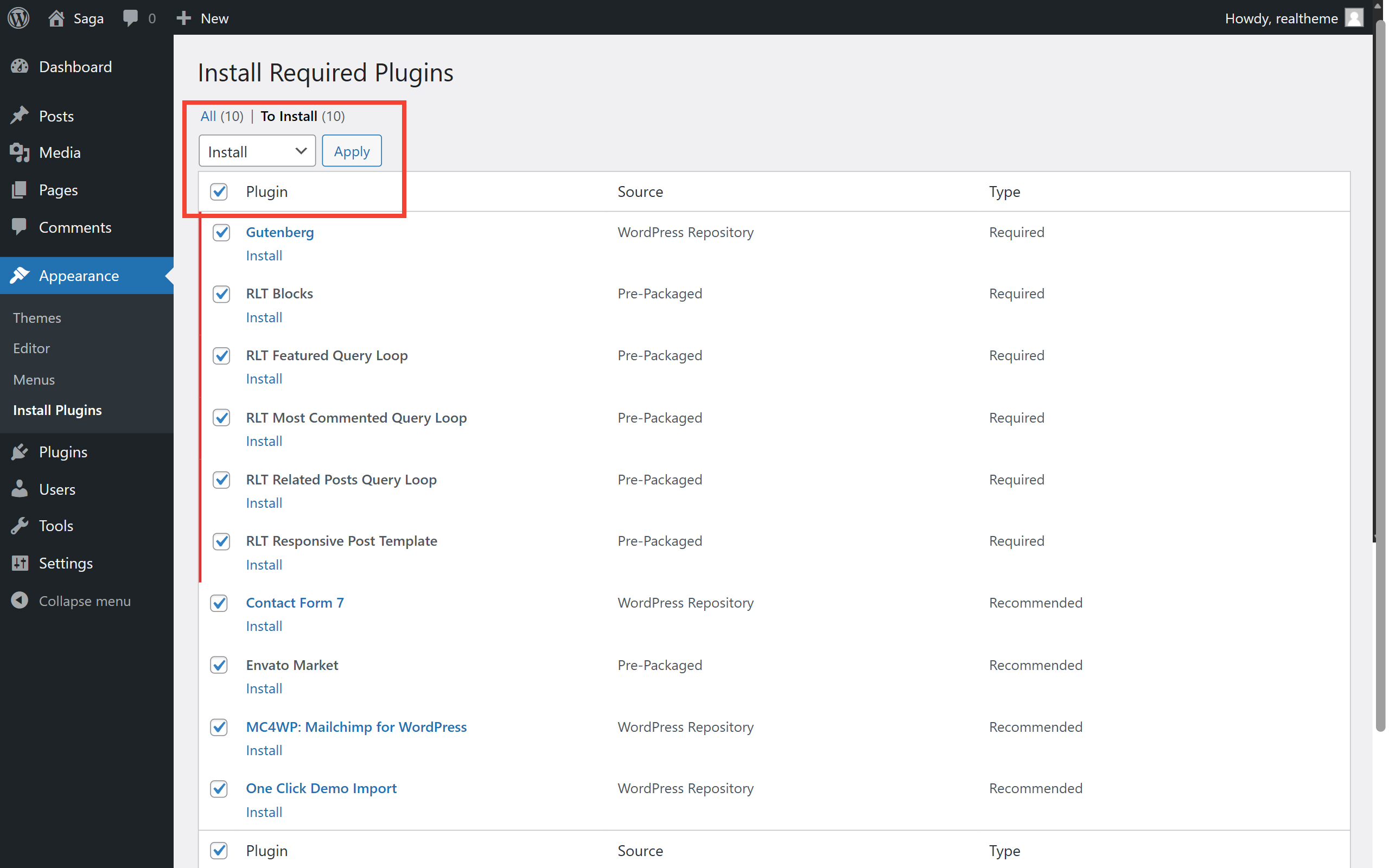
Select all the plugins, choose the "Install" option from the bulk actions dropdown, and click "Apply" (see Pic. 2).
-
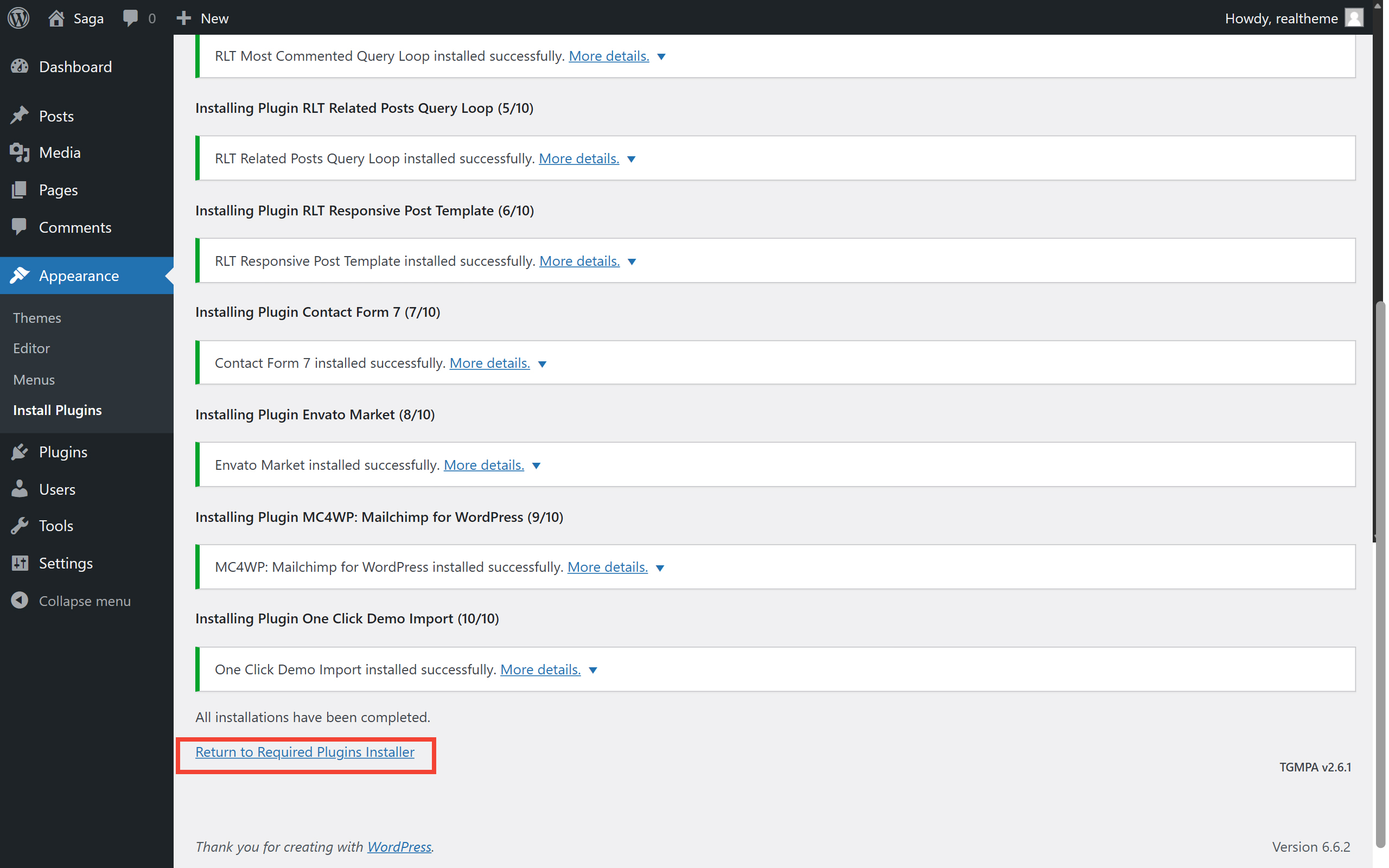
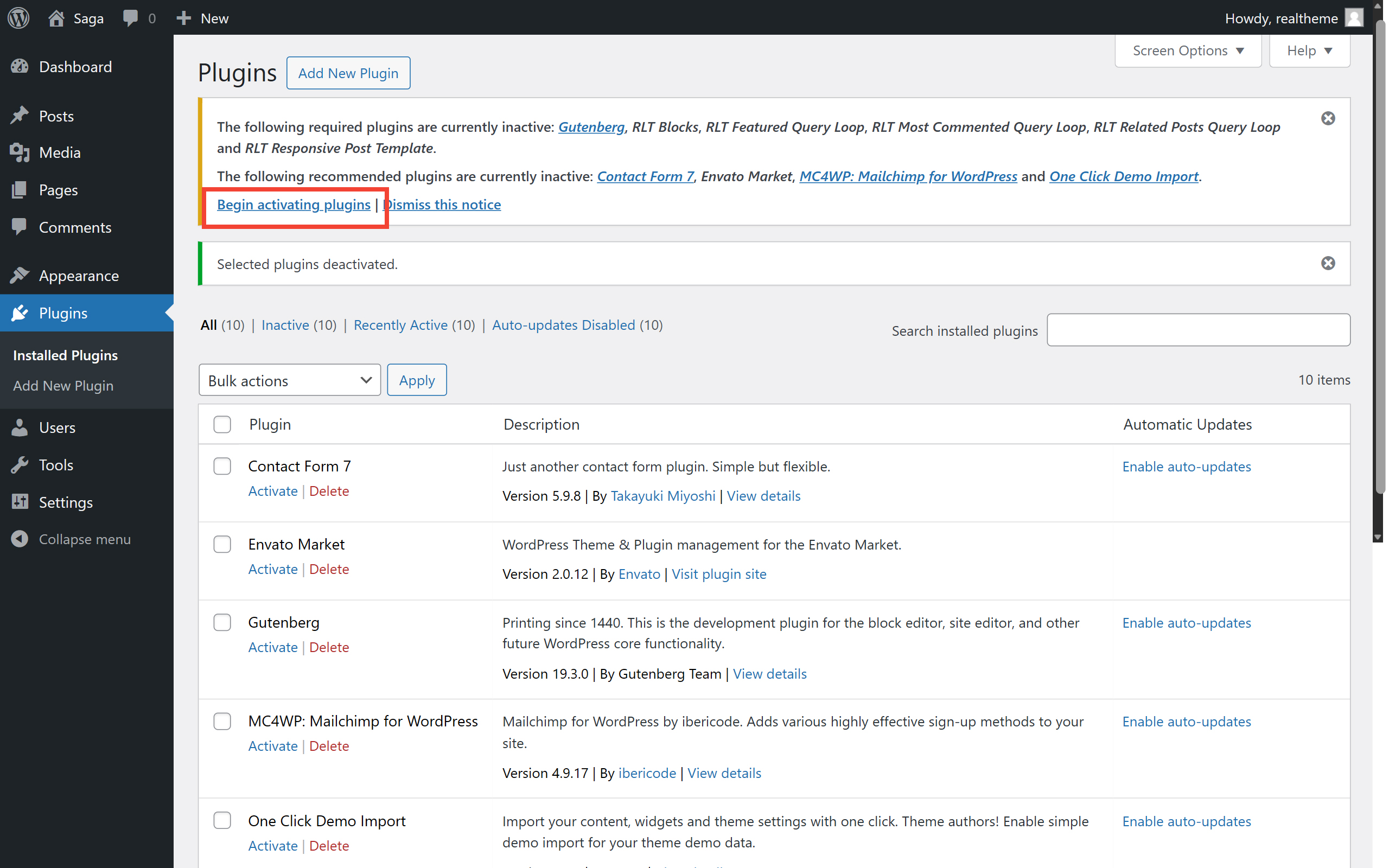
After successfully completing the plugin installation, click on "Return to Required Plugins Installer" (see Pic. 3) or click on "Begin activating plugins" link (see Pic. 4).
-
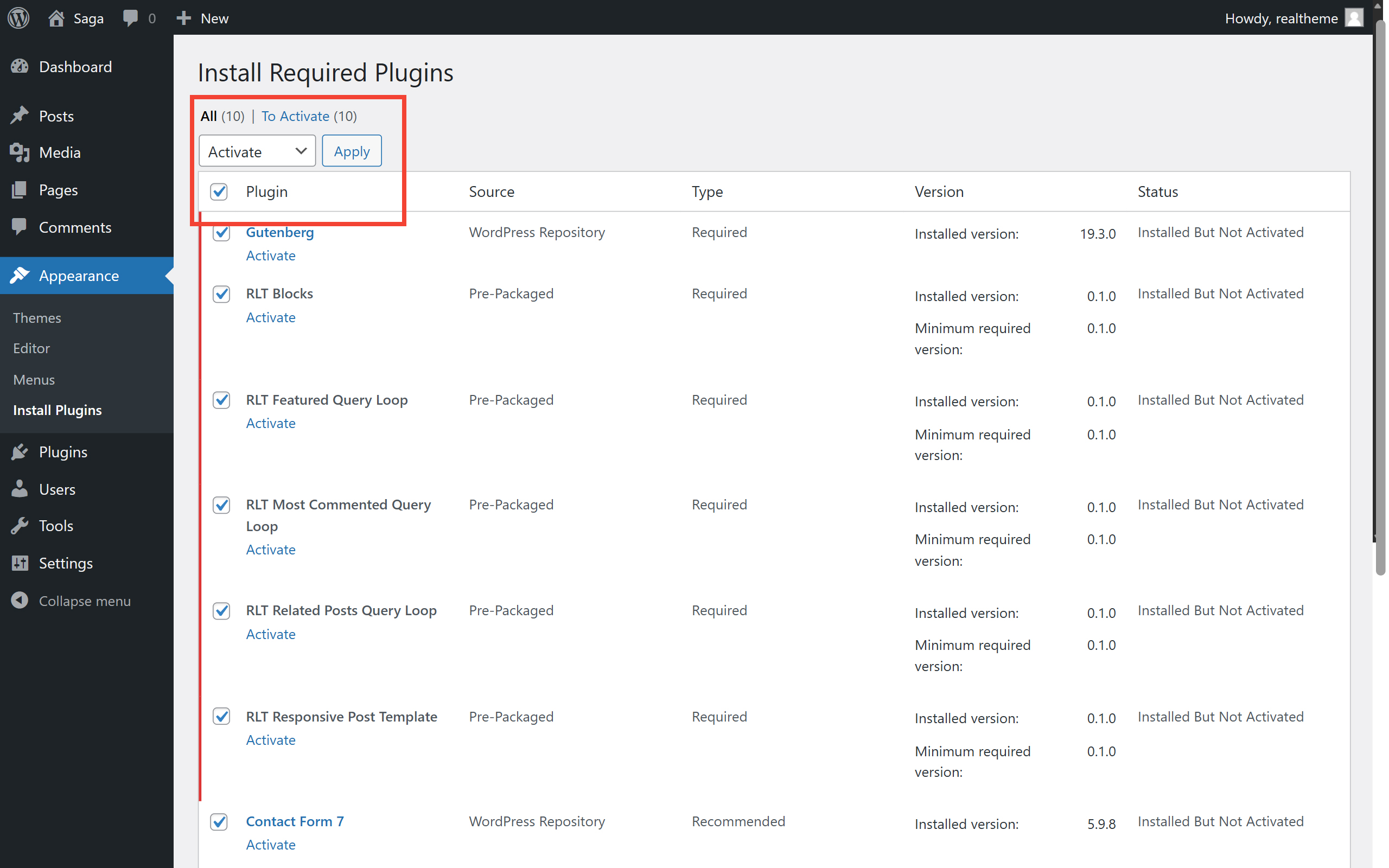
Once again, select all the plugins, choose the "Activate" option from the bulk actions dropdown, and click "Apply" to activate them (see Pic. 5).
-
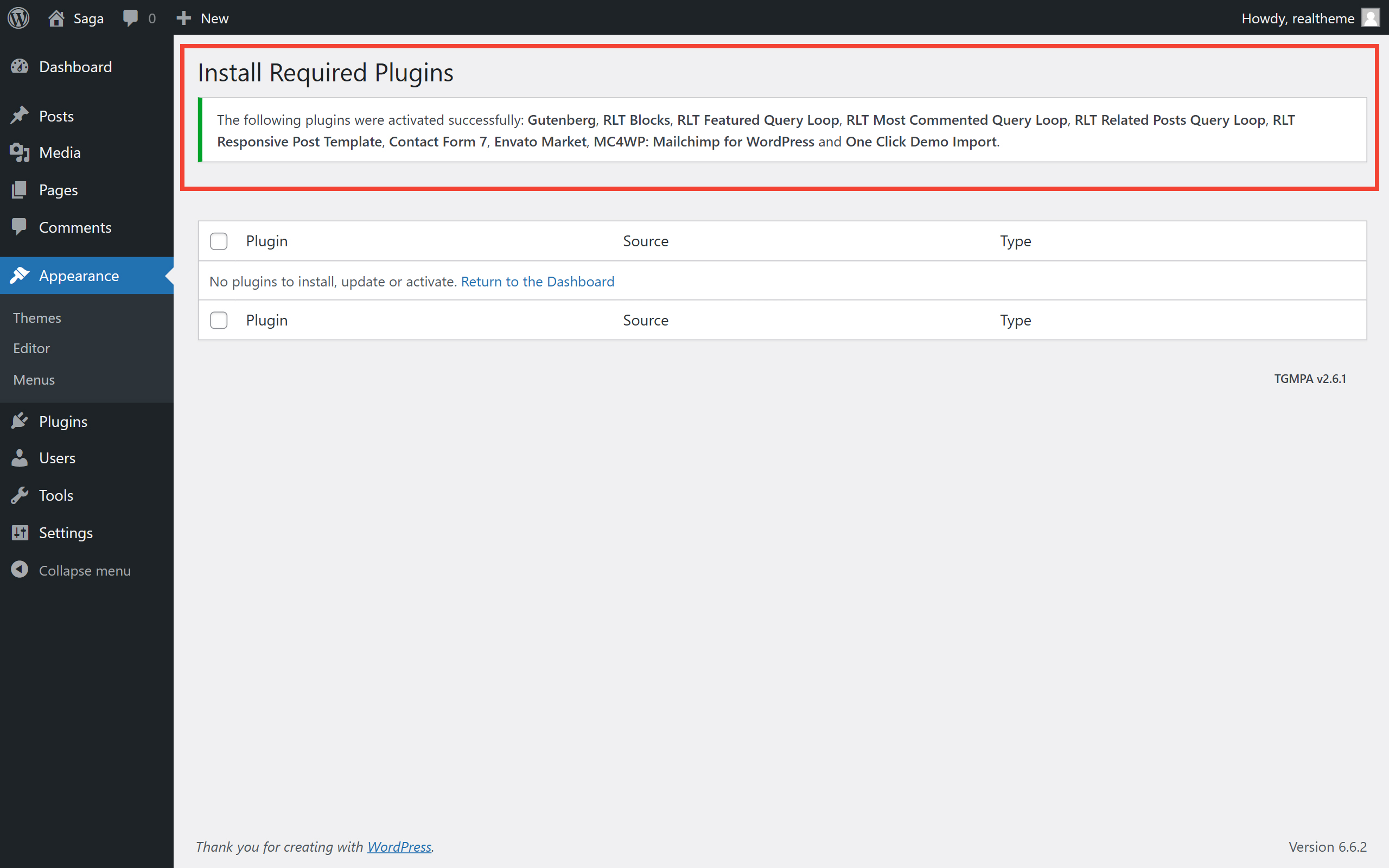
The installer should confirm that the plugins have been successfully activated (see Pic. 6). You can now return to the main page of the Admin Dashboard and begin using your theme.
Import Demo Content
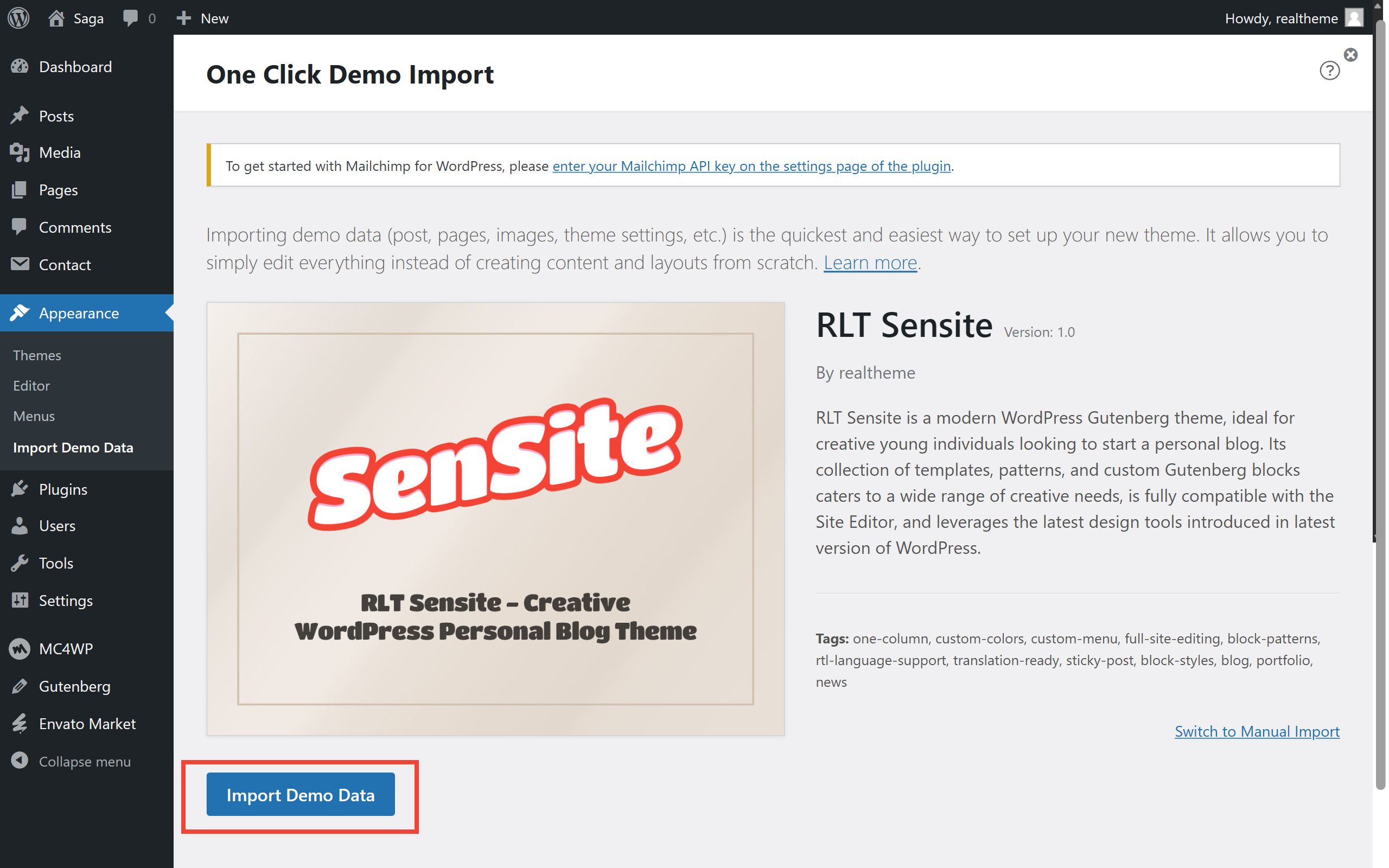
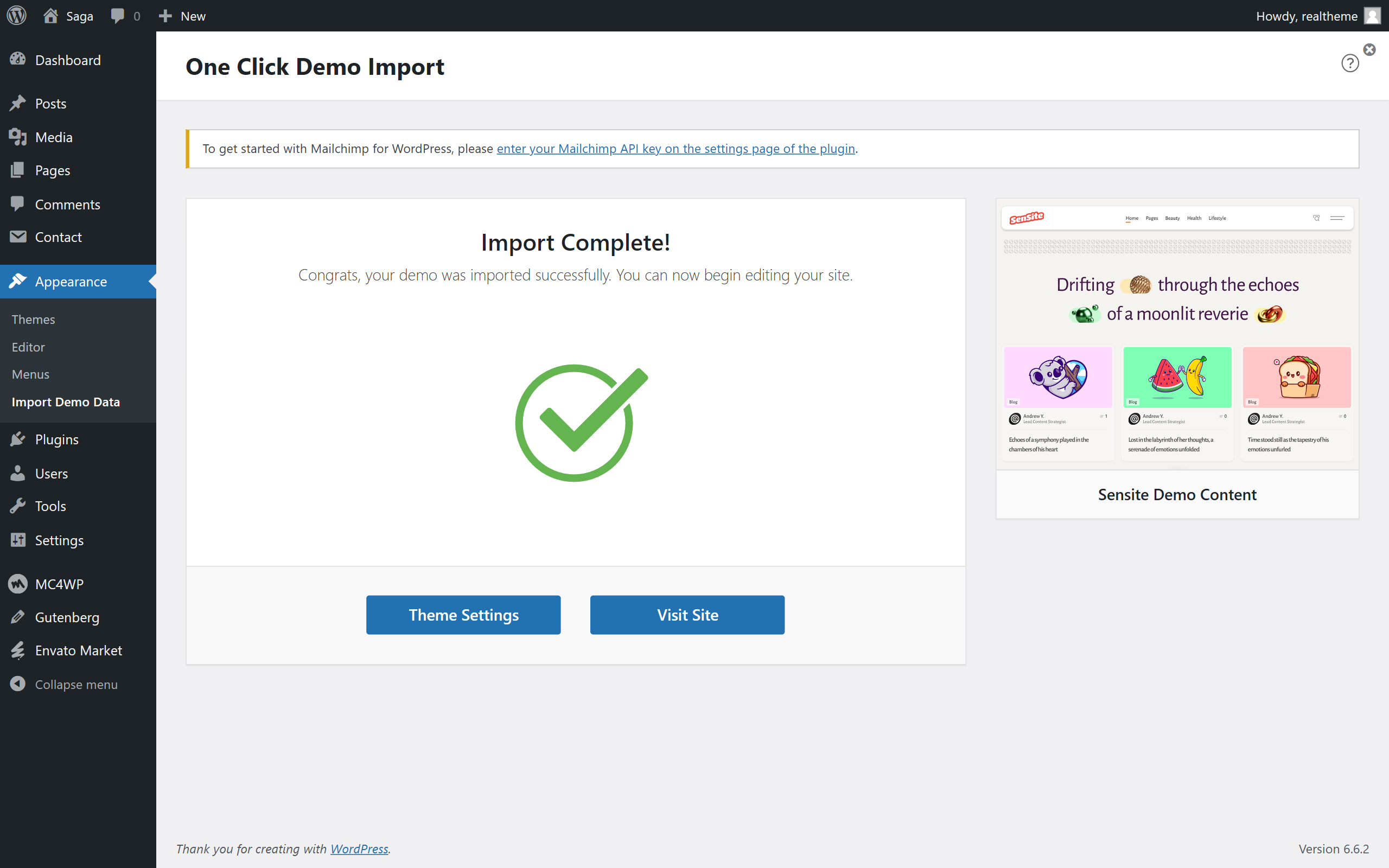
Importing demo content is optional and is not required if you already have a site with existing content. This process is designed to help you quickly set up the theme with sample content.
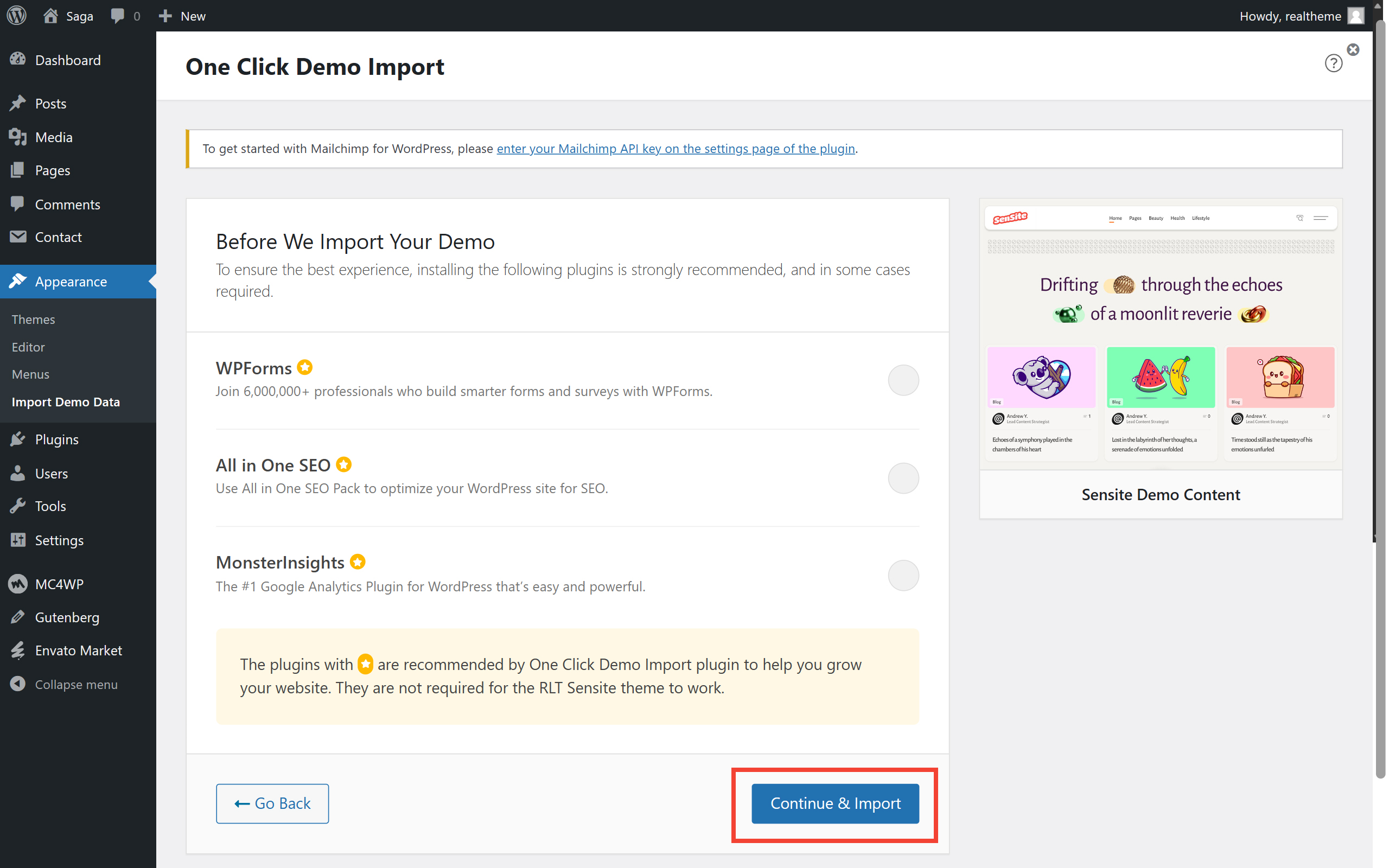
If you choose to import the demo content, you can do so using the One Click Demo Import plugin by OCDI. Follow the plugin’s instructions to complete the import.
Updating
To ensure a smooth theme update, it is essential to back up both your database and any modifications made to theme files. Following the update, you'll need to reapply any changes made to your files.
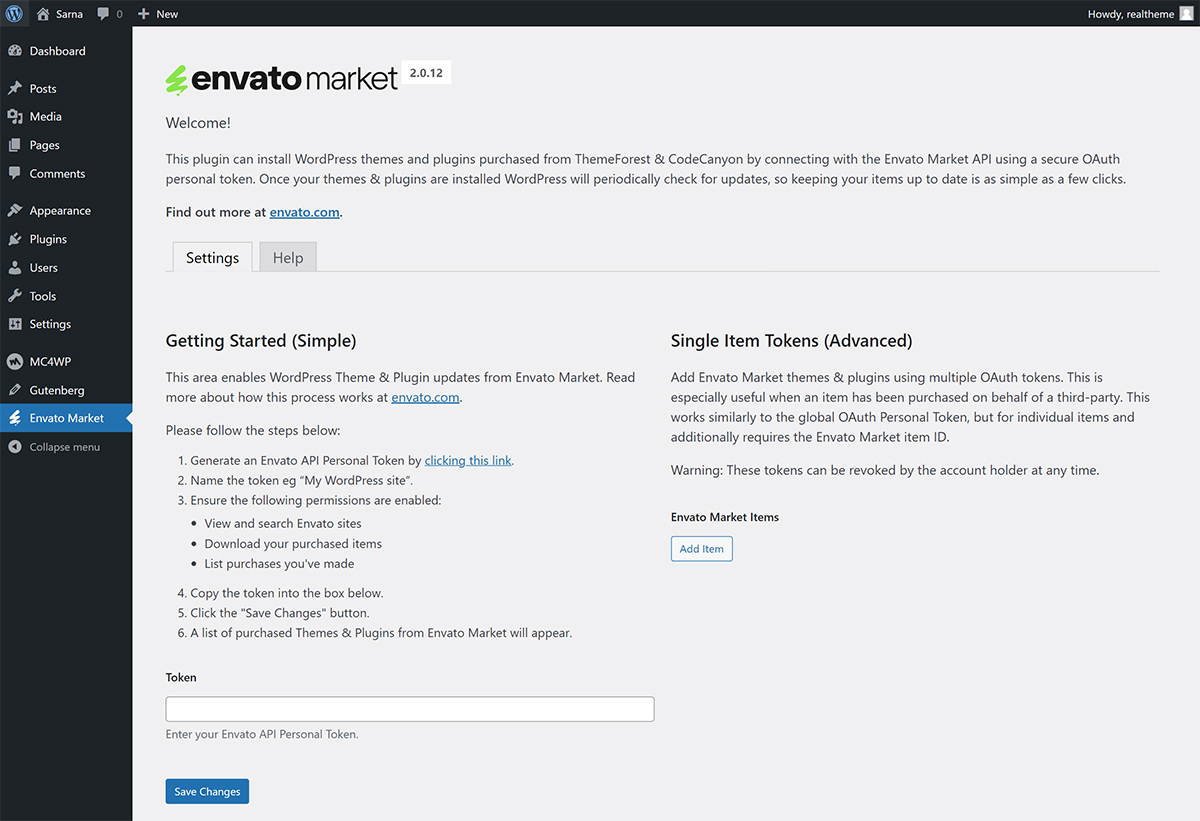
Begin by installing the Envato Market plugin as described in the section on recommended plugins. Once the plugin is successfully installed, a new option will become available in your admin dashboard.
Next, generate and input your personal token, then save the changes. This process will display a list of the themes and plugins you have purchased. You will receive notifications whenever updates are released.
Features
All features are presented as custom Gutenberg blocks
To learn more about blocks and how to use them with the Site Editor, please refer to the official WordPress documentation.
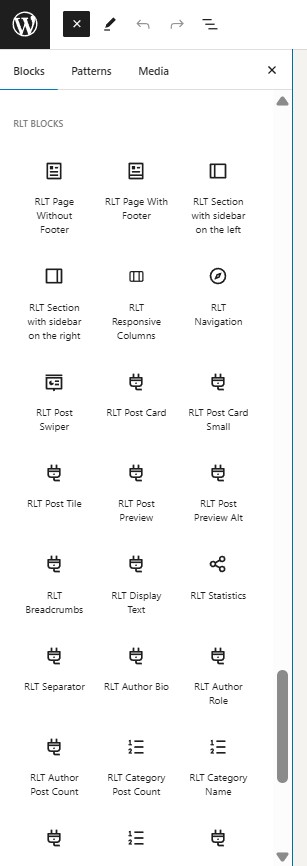
RLT Sensite theme includes the following blocks:
- RLT Page
- RLT Page Content
- RLT Page Footer
- RLT Section
- RLT Section Content
- RLT Section Sidebar
- RLT Responsive Columns
- RLT Responsive Column
- RLT Navigation
- RLT Post Swiper
- RLT Post Card
- RLT Post Card Small
- RLT Post Tile
- RLT Post Preview
- RLT Post Preview Alt
- RLT Breadcrumbs
- RLT Display Text
- RLT Statistics
- RLT Separator
- RLT Author Bio
- RLT Author Role
- RLT Author Post Count
- RLT Category Post Count
- RLT Category Name
- RLT Tag Post Count
- RLT Tag Name
- RLT Comments Count
- RLT Widget Frame
- RLT Widget Addon
- RLT Widget Alt
- RLT Widget Footer
- RLT Post Navigation Links
- RLT Post Terms
- RLT Share Links
- RLT Featured Query Loop
- RLT Most Commented Query Loop
- RLT Related Posts Query Loop
- RLT Responsive Post Template
Display Text
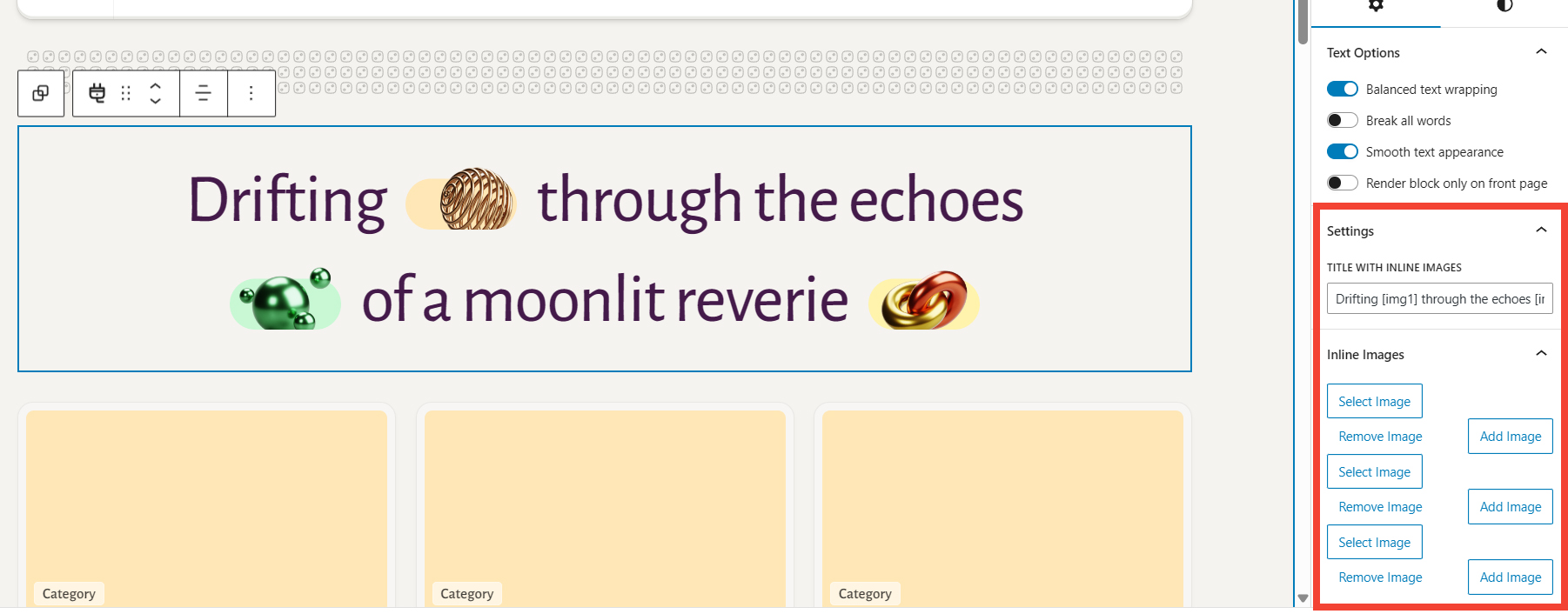
RLT Display Text block allows you to showcase text with inline images. You can control the number and source of these images by inserting [imgN] between words in the text and uploading images via the block settings in the Editor Sidebar.
Featured Posts
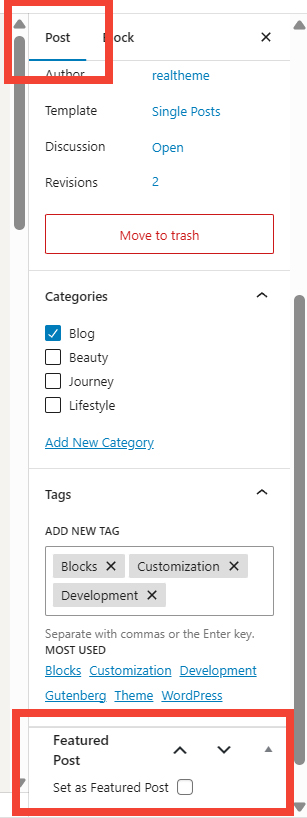
RLT Featured Query Loop and RLT Post Swiper blocks display a selection of "featured posts." For these blocks to function correctly, your site must have at least five featured posts. To mark a post as featured, simply edit the post and check the Set as Featured Post option under the Post tab.
Query Loop Variations
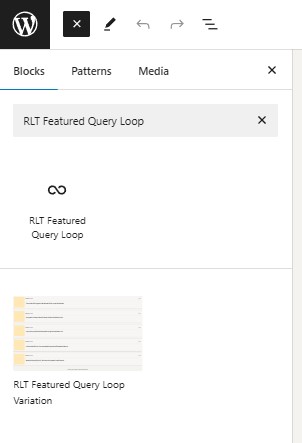
In addition to the default Gutenberg Query Loop block, the theme includes the following Query Loop variations:
- RLT Featured Query Loop
- RLT Most Commented Query Loop
- RLT Related Posts Query Loop
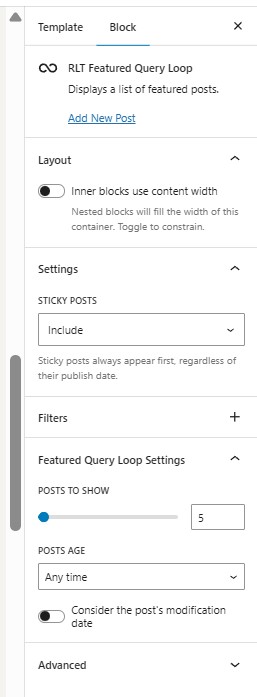
Most of these loops have their own settings available in the Editor Sidebar. Users can select the Post Template block as an inner block for the loop. Within the Post Template block, users can choose blocks that represent post metadata or post cards, such as RLT Post Card or RLT Post Tile.
Subscription Form
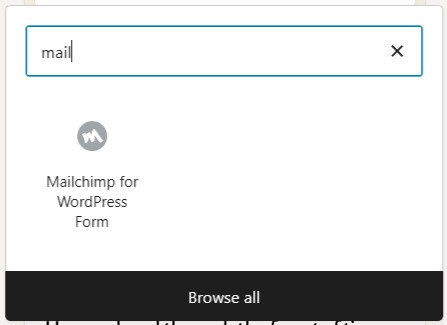
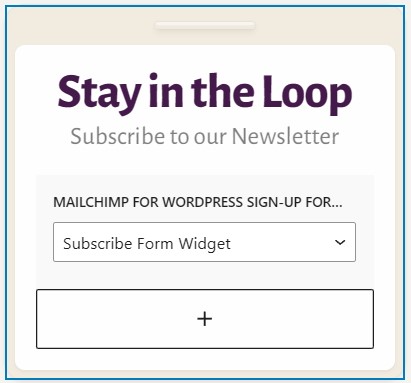
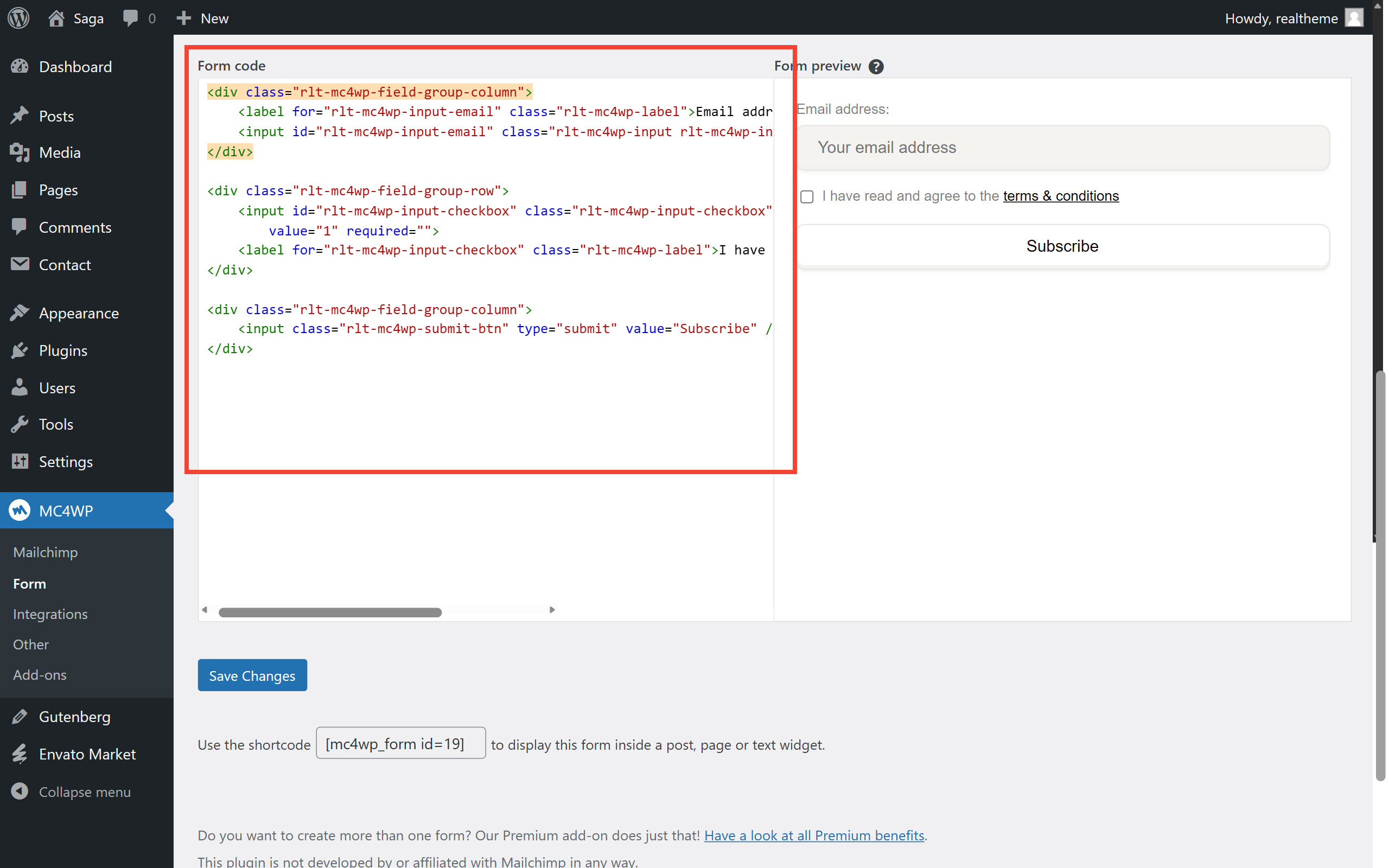
The subscription form is provided by the MC4WP: Mailchimp for WordPress plugin. If you have installed this optional plugin, you will find a corresponding block available in the Block Inserter for adding to your page (Pic-1) (Pic. 2). Please configure the plugin according to the instructions provided by the plugin author (Pic. 3). Additionally, you can use the following HTML code for the subscription form:
<div class="rlt-mc4wp-field-group-column">
<label for="rlt-mc4wp-input-email" class="rlt-mc4wp-label">Email address:</label>
<input id="rlt-mc4wp-input-email" class="rlt-mc4wp-input rlt-mc4wp-input-email" type="email" name="EMAIL" autocomplete="off" placeholder="Your email address" required />
</div>
<div class="rlt-mc4wp-field-group-row">
<input id="rlt-mc4wp-input-checkbox" class="rlt-mc4wp-input-checkbox" type="checkbox" name="AGREE_TO_TERMS" value="1" required="">
<label for="rlt-mc4wp-input-checkbox" class="rlt-mc4wp-label">I have read and agree to the <a href="#" target="_self">terms & conditions</a></label>
</div>
<div class="rlt-mc4wp-field-group-column">
<input class="rlt-mc4wp-submit-btn" type="submit" value="Subscribe" />
</div>
Useful tips
SVG Uploads
It is not allowed themes to enable SVG uploads as it raises security concerns due to the possibility of attackers executing malicious code through SVG's XML. For this reason, this feature is not enabled by default in my theme. However, you can use third-party plugins such as Safe SVG (https://wordpress.org/plugins/safe-svg/) to enable this feature.
After installing and activating these plugins, you will be able to upload and use vector SVG graphics as a site logo, for example, or in other scenarios.
Regenerate Thumbnails
RLT Sensite theme includes custom thumbnail sizes (post images sizes), so you may need to regenerate thumbnails to ensure proper display of post images. I recommend using WP-CLI (requires command-line access to your server) for this task. For details, refer to the documentation for its media regenerate command.
wp media regenerate
Changelog
v1.0.0
- Initial release
Credits
Demo site uses the following icon set:
Hugeicons Pro - Free Version
Demo site uses the following images: